Article
The CloudFront Catastrophes: 3 Caching Mistakes Burning Your Budget
Jan 9, 2026
8 minute read

By
Andy Van Becelaere
Cloud Architect
Share
Part 1 of 3: The $10K Mistake Series
I’ll never forget the Slack message I got at 11 PM on a Tuesday: “Dude, our AWS bill just hit $8,000. Last month it was $2,000. What the hell happened?”
This was from the CTO of a Series A startup I’d been advising. They’d just launched a major feature update, traffic had doubled, and their infrastructure costs had quadrupled. The math wasn’t mathing, as the kids say.
I logged into their AWS console, pulled up Cost Explorer, and there it was: CloudFront had gone from $400 to $3,200 in a single month. The culprit? Three configuration mistakes that are so common I could probably diagnose them in my sleep at this point. And here’s the kicker; every single one took less than an hour to fix.
If you’re running a web app on AWS and using CloudFront, I’d bet money you’re making at least one of these mistakes right now. Let’s talk about what they are, why they’re expensive, and how to fix them before your CFO starts asking uncomfortable questions.
The “CloudFront Everything” Trap
The startup I mentioned had done something that seemed perfectly logical on the surface. They’d read that CloudFront is AWS’s content delivery network, designed to make websites faster and cheaper. So they put everything behind it. Their React frontend, their REST API, their WebSocket connections, everything. One distribution to rule them all. Clean architecture diagram, easy to explain to stakeholders, and it worked perfectly in staging.
The problem revealed itself slowly. Their API responses were completely dynamic. User profiles, real-time inventory data, personalized recommendations, every response was unique to each user and each request. Nothing was cacheable. But every single one of those API calls was flowing through CloudFront, racking up request fees and data transfer charges for zero caching benefit.
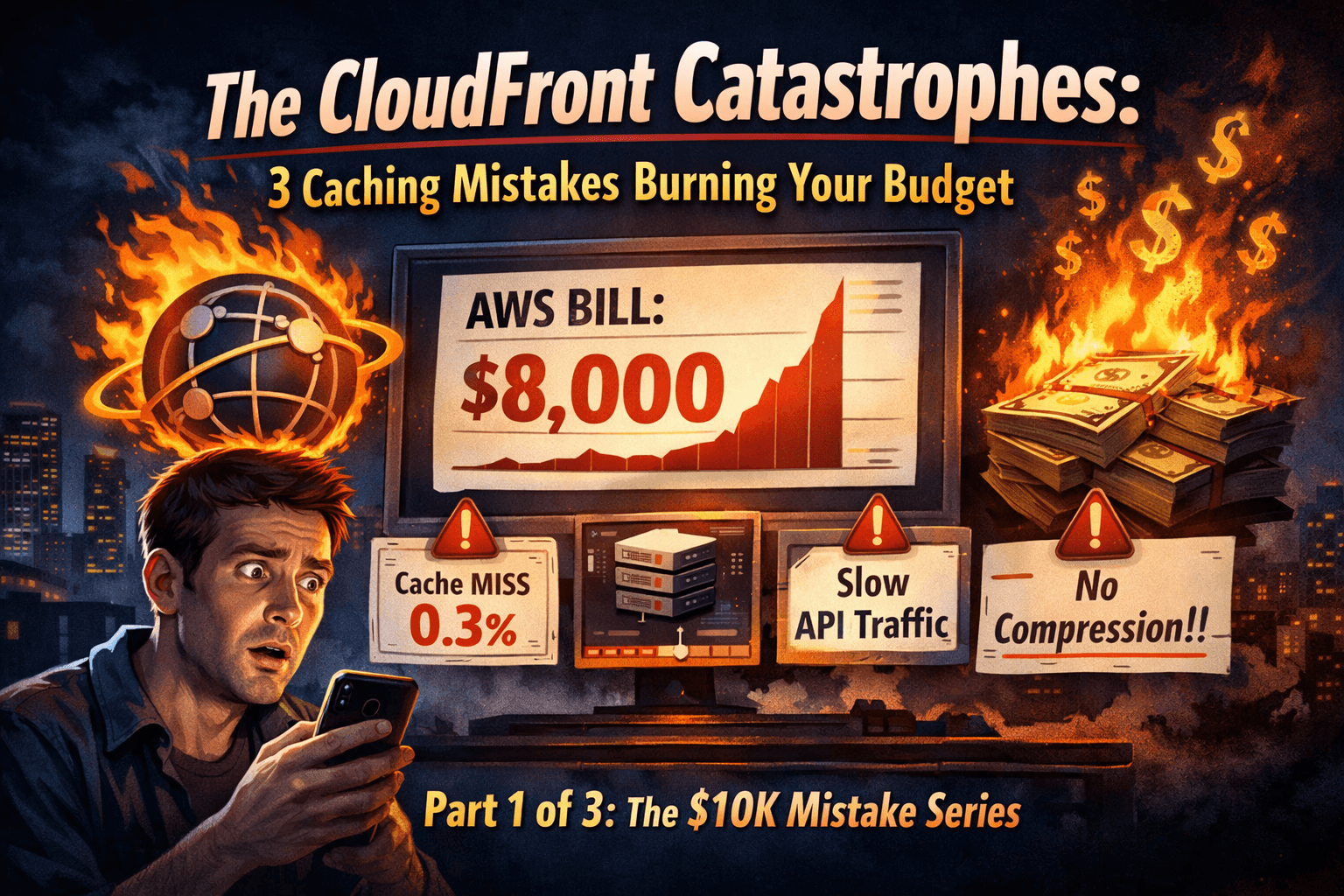
I started by pulling their CloudFront metrics from CloudWatch. The cache hit ratio for their API paths was 0.3%. Essentially nothing was being cached. They were paying CloudFront to act as an expensive proxy that added latency. Here’s what the numbers looked like: 10 million API requests per month, average response size of 5KB. CloudFront was charging them $75 in request fees plus another $4.25 in data transfer. If they’d pointed their frontend directly at API Gateway’s regional endpoint, they’d have paid $4.50 total. They were spending an extra $75 per month, and that was just for their API traffic. Scale that to their actual 40 million requests, and they were burning $300 monthly on this single misconfiguration.
I restructured their setup into two distinct patterns. For their static assets; the React app, images, fonts, all the stuff that never changes, I kept CloudFront with aggressive caching. We’re talking one-year TTLs for versioned assets. For their API traffic, I had them point directly to API Gateway’s regional endpoint. No CloudFront in the middle, no unnecessary request fees, no added latency.
The one exception was their public API, which needed AWS WAF protection and geographic restrictions. For that, we kept CloudFront but configured it properly with cache behaviors that respected their Cache-Control: no-store headers. I also introduced them to CloudFront Functions for some lightweight request routing logic. At $0.10 per million invocations versus the request fees they were paying, it was a no-brainer. These functions let us intelligently route traffic based on URI patterns. Static assets got cached aggressively, API calls bypassed the cache entirely, and HTML files got short TTLs for freshness.
Their CloudFront bill dropped from $3,200 to $890 in the first month after the changes. That’s a 72% reduction, or $2,310 in monthly savings. Annualized, they were saving $27,720. The cache hit ratio for their static assets jumped to 94%, which meant their S3 GET request costs also plummeted. And as a bonus, their API response times actually improved by 15–20ms because we’d eliminated an unnecessary network hop. The CTO sent me a bottle of whiskey and a message that just said “You’re a wizard.” I’m not, I just know that CloudFront is a tool, not a magic wand, and using it everywhere is like using a sledgehammer to hang a picture frame.
The “Default TTL” Disaster
A few months later, I was consulting for a media company running a news website. They had the opposite problem. They were using CloudFront correctly for their static assets, but they’d left everything at the default 24-hour TTL. This meant when they published breaking news, their homepage wouldn’t update for users who’d visited recently. The cached version would sit there, stubbornly showing yesterday’s headlines, while the newsroom was frantically trying to get urgent updates out.
Their solution was to create a CloudFront invalidation after every single publish. They were publishing 200+ articles per day, and each publish triggered invalidations for the article page, homepage, category pages, and RSS feeds. That’s roughly 2,500 invalidation paths per day. After the first 1,000 paths each month are free, AWS charges $0.005 per path. They were paying $225 monthly just to work around their own caching misconfiguration.
I sat down with their engineering and editorial teams to understand their actual content patterns. Most of their articles were evergreen. Once published, they rarely changed. Breaking news was actually pretty rare, maybe 5–10 stories per day that needed immediate visibility. Their homepage needed to be fresh, but it didn’t need to update every second.
We implemented a tiered caching strategy based on content mutability. For their static assets; JavaScript bundles, CSS files, images, we used one-year TTLs with versioned filenames. When they deployed new code, the filename changed, so there was no risk of serving stale assets. For individual article pages, we set a one-hour TTL. Most articles never change after publication, and the rare corrections could wait an hour or be handled with a targeted invalidation.
The homepage was the interesting challenge. We set a two-minute TTL, which meant it would refresh 30 times per hour. This was fresh enough that breaking news appeared quickly, but long enough that we got meaningful cache hit ratios during traffic spikes. When a major story broke and thousands of people hit the homepage simultaneously, CloudFront served the cached version instead of hammering their origin.
I also introduced them to Lambda@Edge for some dynamic TTL logic. For certain API endpoints that served semi-static data like author bios or category listings, we had Lambda@Edge inspect the response and set appropriate cache headers based on the content type. This gave them fine-grained control without having to manage dozens of cache behaviors in the CloudFront console. Lambda@Edge costs more than CloudFront Functions at $0.60 per million requests versus $0.10, but when you need access to the response body or more complex logic, it’s worth every penny.
Their invalidation costs dropped from $225 per month to about $5. They only invalidated for true emergencies now, legal corrections, factual errors, that sort of thing. Their cache hit ratio improved from 45% to 89%, which meant their origin servers were handling a fraction of the traffic they used to. During their biggest traffic spike of the year, a major political event, their origin barely noticed because CloudFront was serving 92% of requests from cache. The editorial team was happier because breaking news actually appeared on the homepage within two minutes instead of requiring manual invalidations. The engineering team was happier because they weren’t getting paged at 2 AM to create emergency invalidations. And the CFO was happier because they’d cut their CloudFront costs by 40% while actually improving performance.
The “No Compression” Money Leak
This one still baffles me every time I see it, and I see it a lot. I was doing a cost optimization audit for an e-commerce platform that was spending $1,275 per month on CloudFront data transfer. They were serving about 15TB of data monthly; product images, JSON API responses, HTML pages, the works.
I pulled up their CloudFront distribution settings and scrolled down to the compression option. It was set to “No.” They weren’t compressing anything. Not their JavaScript bundles, not their CSS files, not their JSON API responses. Nothing. When I asked why, the lead engineer shrugged and said, “It was working fine without it, so we never turned it on.”
I started by analyzing their traffic patterns. About 60% of their data transfer was product images , JPEGs and PNGs that were already compressed. Enabling CloudFront compression wouldn’t help there. But the other 40% was text-based content: JSON API responses, HTML pages, JavaScript bundles, CSS files. This stuff compresses incredibly well, typically 70–80% reduction.
I did the math for them. They were transferring about 6TB of compressible content per month. At $0.085 per GB, that was $510 in data transfer costs. With compression enabled, that 6TB would become roughly 1.5TB, costing $127.50. They were literally paying $382.50 per month extra because a checkbox wasn’t checked.
We enabled compression on their CloudFront distribution. The actual process took about five minutes. Edit each cache behavior, set “Compress objects automatically” to Yes, save changes. Then we monitored for a few hours to make sure nothing broke. It didn’t. CloudFront automatically detects file types and only compresses appropriate content. It serves brotli to modern browsers and falls back to gzip for older ones. Images, videos, and already-compressed formats get passed through untouched. It just works.
Their next month’s CloudFront bill came in at $829, down from $1,275. That’s $446 in monthly savings, or $5,352 annually. The time investment was five minutes of clicking checkboxes in the AWS console. The ROI was infinite. No cost to implement, immediate savings, and as a bonus, their page load times improved by 30–40% because users were downloading smaller files. The kicker? When I asked if they wanted me to look at anything else, the CTO said, “Honestly, if we’d known it was this easy, we would’ve done it years ago.” That’s the thing about these CloudFront mistakes, they’re not complicated to fix. They’re just easy to overlook, and they cost you money every single day until someone points them out.
The Pattern Behind the Anti-Patterns
Here’s what I’ve learned after fixing these issues dozens of times: most CloudFront problems aren’t technical failures. They’re knowledge gaps. Someone sets up CloudFront based on a tutorial or documentation, it works, and nobody ever goes back to optimize it. The defaults are designed to be safe, not cost-effective. A 24-hour TTL won’t break your site, but it might not be optimal. Compression being opt-in means it won’t cause problems, but it also means most people never enable it.
The companies that avoid these mistakes are the ones that treat their AWS infrastructure as something that needs ongoing optimization, not just initial setup. They monitor their cache hit ratios. They review their CloudFront configurations quarterly. They test changes in staging before rolling them to production. They understand that a few hours of optimization work can save thousands of dollars per year.
If you’re running CloudFront right now, here’s what I’d do today. Pull up your CloudFront distribution in the AWS console. Check if compression is enabled, if it’s not, enable it. That’s five minutes and potentially hundreds of dollars in monthly savings. Then pull up CloudWatch and look at your cache hit ratio. If it’s below 80% for static content, you’ve got a TTL problem. And finally, look at your Cost Explorer and see what percentage of your CloudFront costs are coming from API traffic. If it’s significant, you might be routing uncacheable traffic through CloudFront unnecessarily.
These aren’t the only CloudFront mistakes that cost money, but they’re the most common and the easiest to fix. In Part 2 of this series, we’re going to dive into S3 and API Gateway anti-patterns that are probably costing you even more. We’ll talk about why serving content directly from S3 is burning money, how choosing the wrong API Gateway type can cost you $3,000 per year, and why misconfigured CORS is literally doubling your API Gateway bill.
Until then, go check those CloudFront settings. Your CFO will thank you.
Have you found any of these issues in your own CloudFront setup? I’d love to hear your story. Drop a comment below.